
See every FloatR who works with your lab, decide who gets a fast lane with a simple approval and block system plus powerful insights into your workforce.
Until now, “who works with our lab” was scattered. Approved users lived in one place, blocked users in another, and everything you actually knew about a FloatR — how many hours they’ve put in, how you’ve rated them, how often they call out — lived in your head or in a spreadsheet.
Network puts all of it on one screen. Every FloatR connected to your lab, what they’ve done for you, and a single control that decides how much friction stands between them and your tasks.
Who’s in your network
Your network fills itself in. A FloatR shows up there if they:
- have worked a shift for your lab
- on an upcoming task for your lab (claimed or assigned)
- have been explicitly approved or blocked by you.
No setup, no importing. If they’ve worked for you, they’re already there.
You can also pull someone in before they’ve ever worked a shift. Add to Network searches every FloatR by name, email or phone and lets you approve or block them outright — useful when you already know who you want (or don’t want) walking through the door.
Three statuses, one click
Every row ends in a three-position control: Blocked · No status · Approved. It reads worst-to-best, left to right, and one click applies it. There’s no confirmation dialog — the status is reversible from exactly the same place you set it.
✅ Approved — skip the approval queue
When a task is marked admin approval required, a FloatR who claims it normally lands in your claim-request queue and waits for someone on your team to say yes.
An approved FloatR skips that step entirely. They claim the task and it’s theirs.
Important: approval only bypasses the admin-approval step. Every other requirement still applies — job match, required training, tags, distance, all of it. Approving someone is saying “we know this person, stop making them ask,” not “let them on anything.”
You can attach a note when you approve someone, so the next manager who looks knows why.
⛔ Blocked — off your locations, off your tasks
Blocking removes the FloatR from your lab’s world in the app:
- Your locations stop appearing in their search.
- Your tasks stop appearing — they can’t see them, so they can’t claim them.
- They’re pulled off every upcoming task they already hold, whether they claimed it or you assigned it.
That last one is worth saying twice: blocking clears them from future work immediately, and unblocking does not put them back. Those tasks are open again the moment you block. The confirmation toast tells you exactly how many tasks it just freed up, so you can go re-fill them.
➖ No status — the default
Treated like any other FloatR. Approval queue applies, your tasks are visible, nothing special either way. Most of your network sits here, and that’s fine.
Approved and blocked are mutually exclusive. Approving someone who’s blocked clears the block automatically, and vice versa — the toast says so when it happens. Every change is logged with who made it and when.
The part you’ll actually stare at: the insights
A status decision is only as good as what you know. So every row carries the FloatR’s record with your lab specifically — not their global reputation, yours.
Rating — your lab’s own average across the shifts you’ve rated, with how many ratings it’s built from. If their overall FloatR rating meaningfully disagrees with yours, that’s shown alongside it. A comment icon appears when you’ve left written feedback while rating their shifts — click it to read your team’s own words back, so a low score is never an unexplained mark.
Training — a progress meter against your mandatory training, plus a count of optional training passed. You can see who’s actually cleared to work before you approve them.
Recent Hours — a 12-week sparkline of hours worked for your lab. You can spot a regular, a fader, and a one-timer at a glance.
Booked ahead — the same chart pointed forward: what they’re already on for the coming weeks, colour-split by claimed, assigned, applied and rejected. Every sparkline on the page shares one scale, so a 40-hour week ahead stands exactly as tall as a 40-hour week behind, and you can compare straight down the column instead of squinting row by row.
Total hours — lifetime hours for your lab.
Reliability — two rates that answer “how often does this go sideways”:
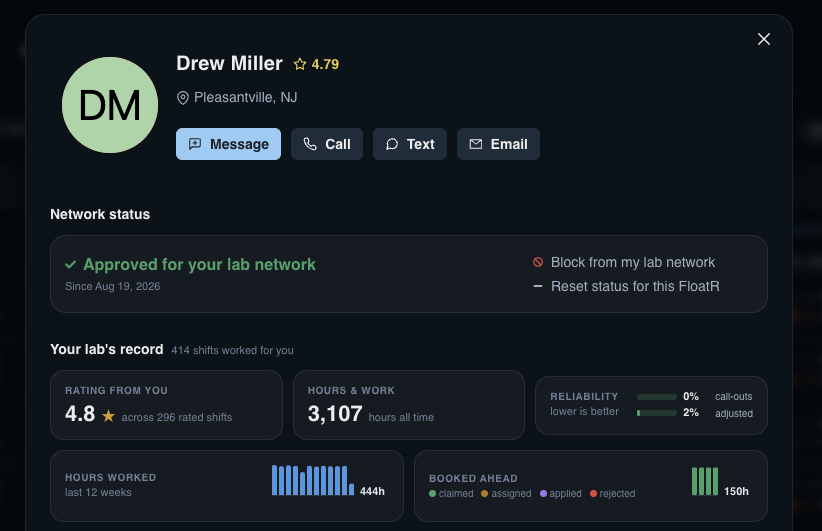
Call-outs — how many tasks they claimed and then dropped. Shifts you assigned them aren’t counted, because turning down an assignment isn’t the same as bailing on something you took. Click through to see the actual tasks and the reason they gave.

Adjusted — how many of their timecards didn’t come from a clean punch: no punch at all, or times edited afterward by them or by you. Click through for the shift-by-shift detail, original time struck through and the adjustment beside it.
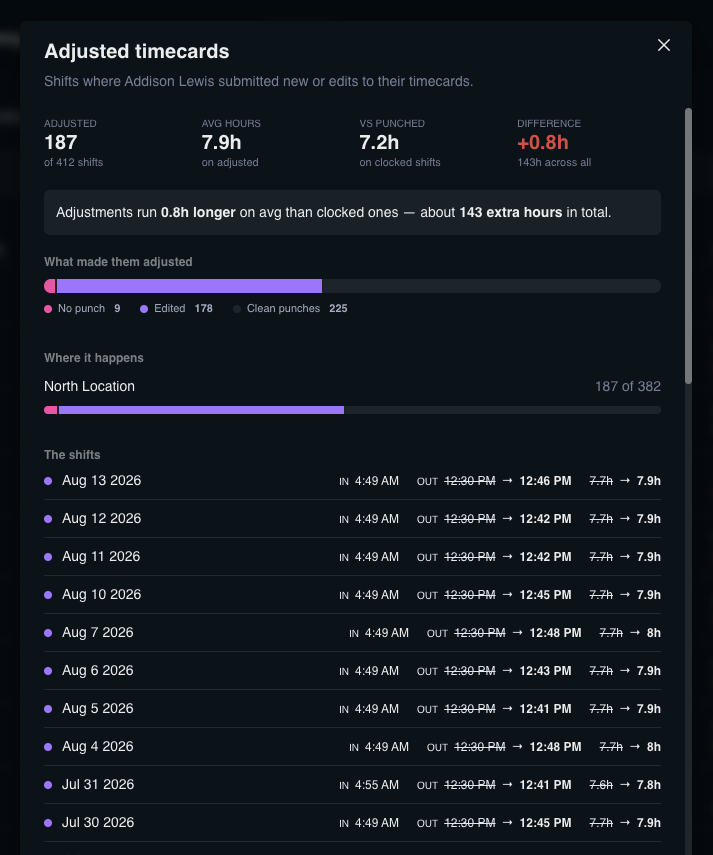
Both rates come with the context that keeps a
0% honest — a tooltip tells you whether it means “never put a foot wrong” or “nothing on record yet.”Finding the person you’re looking for
- Search by name, email or phone.
- Filter by status: all, approved, blocked, or no status.
- Sort by most hours (last 12 weeks or all time), most call-outs, most self-entered timecards, highest rated, or name.
The rating sort is weighted rather than naive: ratings are pulled toward your lab’s own average based on how many you’ve left, so a perfect 5.0 off three shifts doesn’t leapfrog a 4.88 off four hundred. Volume counts.
Summary tiles at the top keep the headline numbers in view: total FloatRs in your network, how many are approved, how many are blocked.
A few practical notes
- Everything is per-lab. Your approvals and blocks apply to your lab only. Another lab’s decisions are theirs.
- The old Blocked Users page now redirects here, filtered to blocked. Your bookmarks keep working, and
?status=blockeddeep-links straight to that view.
- You can also set status from a FloatR’s pool profile — same three moves, stated in words instead of a switch, so you don’t have to come back to the roster to act on what you just read.
How we’d use it
- Sort by hours, last 12 weeks. The people at the top are your de facto staff. Approve them and stop making your admins rubber-stamp the same names every week.
- Sort by call-outs. Look at the reasons before you judge — sometimes it’s the tasks, not the person.
- Check training before approving. The meter is right there.
- Block sparingly, and know the cost. It’s immediate, it clears their upcoming work, and unblocking doesn’t restore it.
Approving your regulars is the single highest-leverage thing on this page. Every approval you set is an approval queue your team never has to work through again — and the FloatRs who already know your lab get their shifts confirmed the moment they claim them, instead of waiting on a click.
Find it under Schedule → Network.